Four ways to freeze.
Start with Clear, then try Frosty, Cracked or Melting. Use the preview to find the finish that suits your design.
ZOBRELLA · CANVA APP
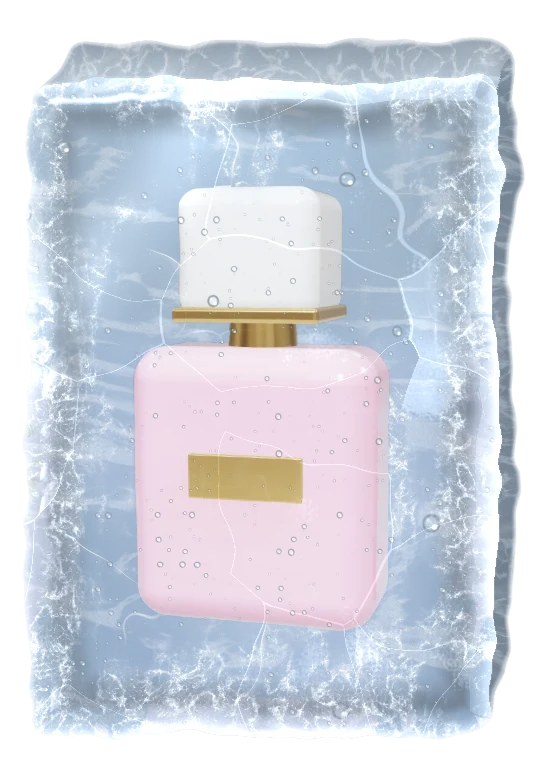
Put a picture inside a block of ice. A product, a portrait or a logo—give it a frozen look you can make your own.
Keep it crystal clear, add a little frost, or explore cracks and a melting finish.
Coming soon to Canva. The public app link will be added when available.
A COOLER WAY TO SHOW YOUR PICTURE
A picture, an ice block, and room to experiment.
Start with Clear, then try Frosty, Cracked or Melting. Use the preview to find the finish that suits your design.
Try the sample, upload a picture or use one from your Canva page. Remove its background when you want the ice around a cut-out.
Choose the ice colour and adjust the visual effects. Add the finished still image to your Canva design.
PICTURE → ICE → DESIGN
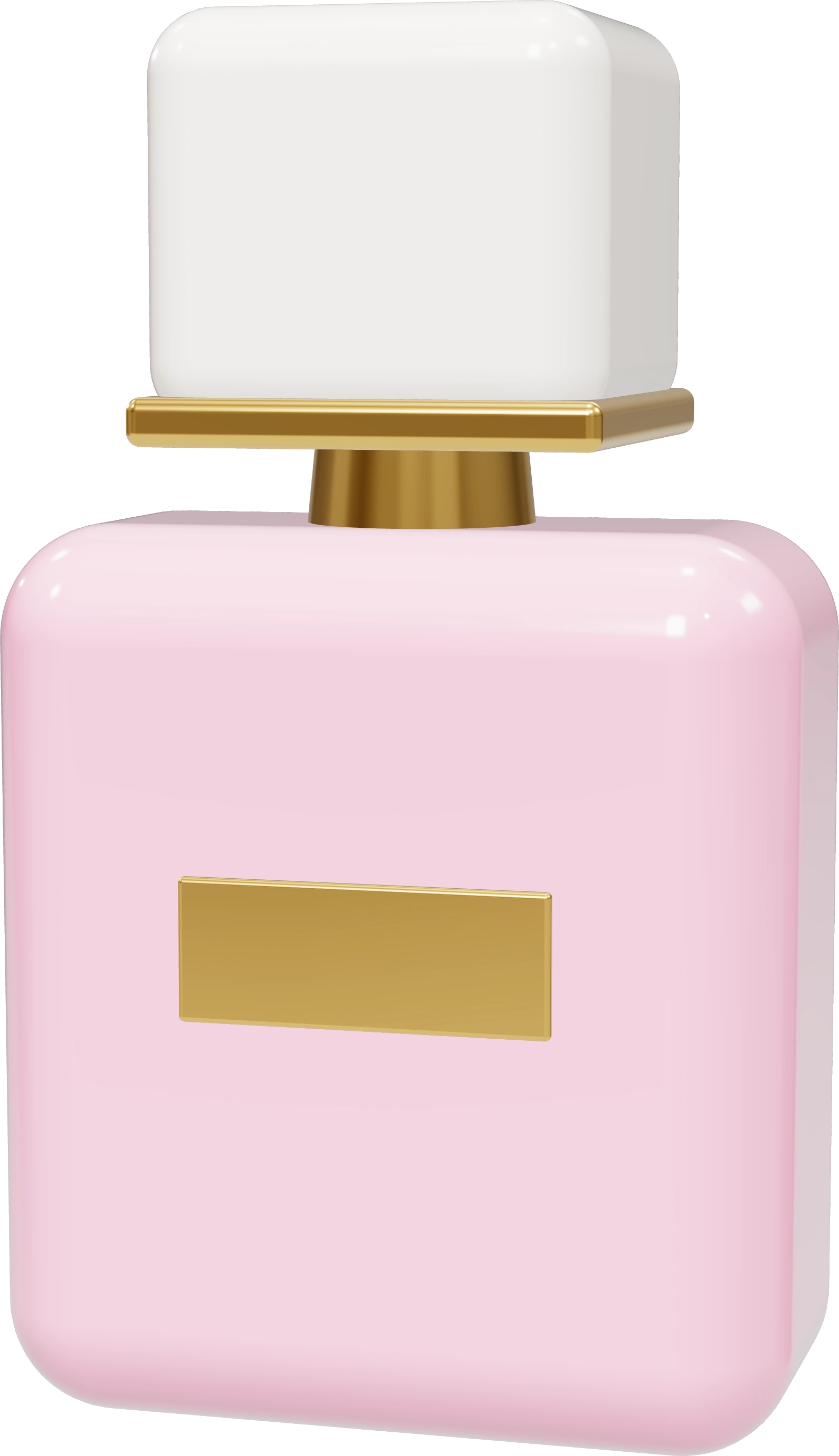
Try the perfume sample, upload your own picture, or select one image on your Canva page.
Choose Clear, Frosty, Cracked or Melting. Adjust the colour and effects, and remove the background if you want a cut-out subject.
Check the preview, then choose Add to design. Use Update on page to change the result you last added, or add a separate copy.
A FEW QUICK ANSWERS
Image Freeze puts a picture inside a rendered ice block. It makes one finished still image for your Canva design, not a video or animation.
Choose Clear, Frosty, Cracked or Melting. Adjust the ice colour, how clearly the picture shows through, and the available effect controls. The live preview shows the result.
Choose Remove background and inspect the edges when it finishes. The background remover runs on your device. Cancel stops preparation, and Undo can restore the previous background. Fine details and busy scenes can be difficult to separate.
Image Freeze aims for up to 4096 pixels on its longest edge. The app can use a smaller size when device memory or encoding limits require it. A larger export cannot restore detail missing from a small source picture.
KEEP CREATING