Clean to Chrome.
Choose Clean, Neon, Outline or Chrome. Combine a font with your text and background colors.
ZOBRELLA · CANVA APP
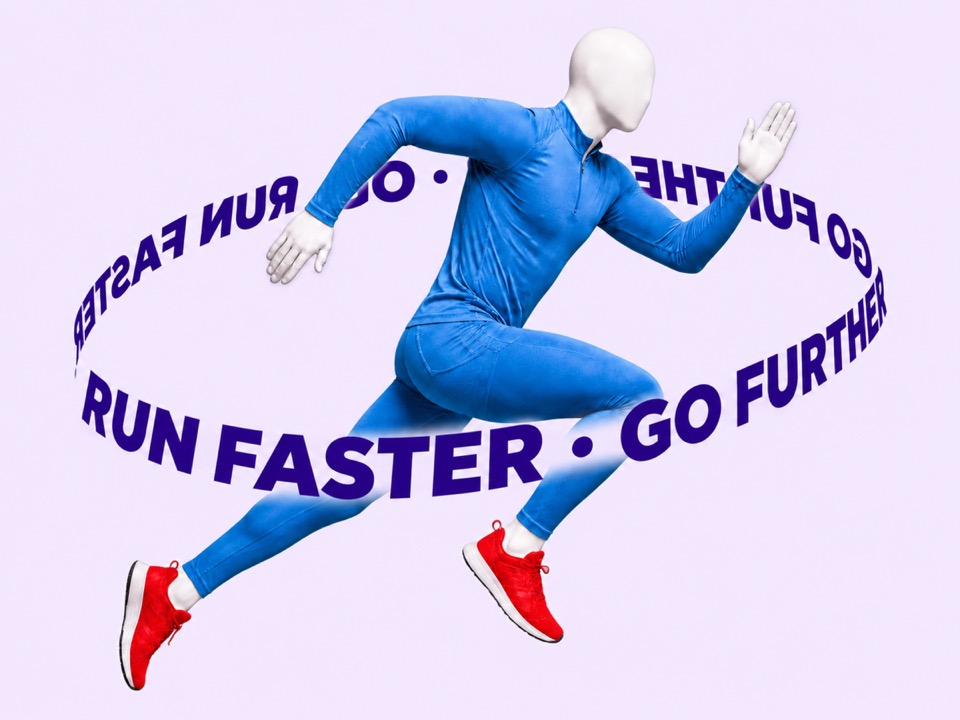
Wrap text around a photo, with words passing in front and behind. Turn a short phrase into a ring you can make your own.
Start with Clean, explore three more looks, and adjust up to three rings in the preview.
Coming soon to Canva. The public app link will be added when available.
A DIFFERENT WAY TO USE YOUR WORDS
One picture, a phrase, and room to experiment.
Choose Clean, Neon, Outline or Chrome. Combine a font with your text and background colors.
Change size, tilt, height and turn. Open More options for lean and text size, or adjust each ring on its own.
Try the sample, upload a file, or use a photo from your page. Remove the background to reveal the back of the ring.
PHOTO → WORDS → DESIGN
Start with the runner sample, upload a photo, or select one photo on your Canva page. Remove its background when you want the words to pass behind the subject.
Type your words, choose a font and a look, then adjust the ring. Use up to three rings, with individual words, colors and adjustments.
Check the preview and choose Add to design. Use Update on page to change the result you last added, or Add a new one for a separate copy.
A FEW QUICK ANSWERS
Orbit Text arranges your words in perspective around a photo. The back of the lettering passes behind the cut-out subject and the front passes in front. The result is a still design, not an animation.
The app opens with Clean selected. Try Neon, Outline or Chrome for a different look. Choose Tall, Bold, Slim, Blocky or Fun, and pick text and background colors.
Yes. Choose two or three rings and open a ring’s dropdown to set its own words, color and adjustments. An empty individual words field follows Your words. Reset ring returns it to the main settings.
Yes. The dot in RUN FASTER · GO FURTHER is ordinary editable text. Delete it, move it, or replace all the words. Orbit Text does not automatically add separator dots.
KEEP CREATING